
In short
Create a free Nexoply account, add your business information, and copy the one-line install code from the Chatbot page of your dashboard. In your Wix dashboard, go to Settings → Custom Code → + Add Custom Code, paste the code, choose All pages and Body - end, and apply. Wix only runs custom code on sites with a premium plan and a connected domain; once that's in place, the chat button appears on every page. The assistant answers only from your business information, and Nexoply's Free plan (50 conversations a month) needs no credit card.
- One line of code in Wix's Custom Code settings: no app to install, no AI key, no developer.
- Built around your business: it answers only from your services, prices, FAQs and policies, and Nexoply's Free plan needs no card.
- Choose "All pages" and "Body - end" so the chat button shows everywhere and loads last.
- Wix requires a premium plan with a connected domain for custom code; it doesn't run on free wixsite.com addresses.
- The widget loads asynchronously and sets no cookies. It can't break your site.
Wix chatbot builder vs adding Nexoply
If you're looking for a Wix chatbot builder, there are two routes: a chat tool set up inside Wix, or an assistant built in a separate service and added to your site with Custom Code. Nexoply is the second kind, and in practice that works like this:
- You build it in the Nexoply dashboard, without code. Add your services and prices, FAQs, policies, opening hours and service areas, or import them from your Wix site's public pages (15 per scan on the Free plan). Sign up with the site's address and Nexoply adds them by itself, never overwriting what you typed; later changes to prices, hours or contact details wait for your approval.
- It answers only from that information. It's instructed to say when it doesn't know instead of guessing, and every conversation is in your dashboard to review.
- You design it there too. Message button or side tab, colours, fonts and logo, ready-made templates, a separate look on phones, and start-screen buttons such as Book, Call or WhatsApp.
- It answers in 12 languages. Visitors who write in another supported language get answers in that language.
- What it isn't. It's not a full helpdesk with ticketing (though your team can watch chats live and take over any of them, on every plan), and it doesn't take bookings or payments itself; its buttons send visitors to your booking page, phone or WhatsApp.
Wix's own requirement still applies: custom code needs a premium plan with a connected domain. On the Nexoply side, the Free plan includes 50 conversations a month; paid plans start at $19 a month on the pricing page. For the full list of options, see the chatbot features.
Before you start
Check these three things first:
- A Nexoply account. Sign up free: the Free plan includes 50 conversations a month, with no card needed.
- Your business information in Nexoply: services and prices, FAQs, policies, opening hours and service areas. The quickest way is to sign up with your Wix site's address and let Nexoply import your public pages (it reads pages built with JavaScript, which Wix uses). Nexoply adds what it finds by itself, without overwriting anything you typed; a scan you start later from the dashboard is shown for review first.
- A Wix premium plan with a connected domain (for example mysalon.com rather than a free username.wixsite.com address). Wix only lets you add custom code to sites that have both.
Step 1: Copy your install code
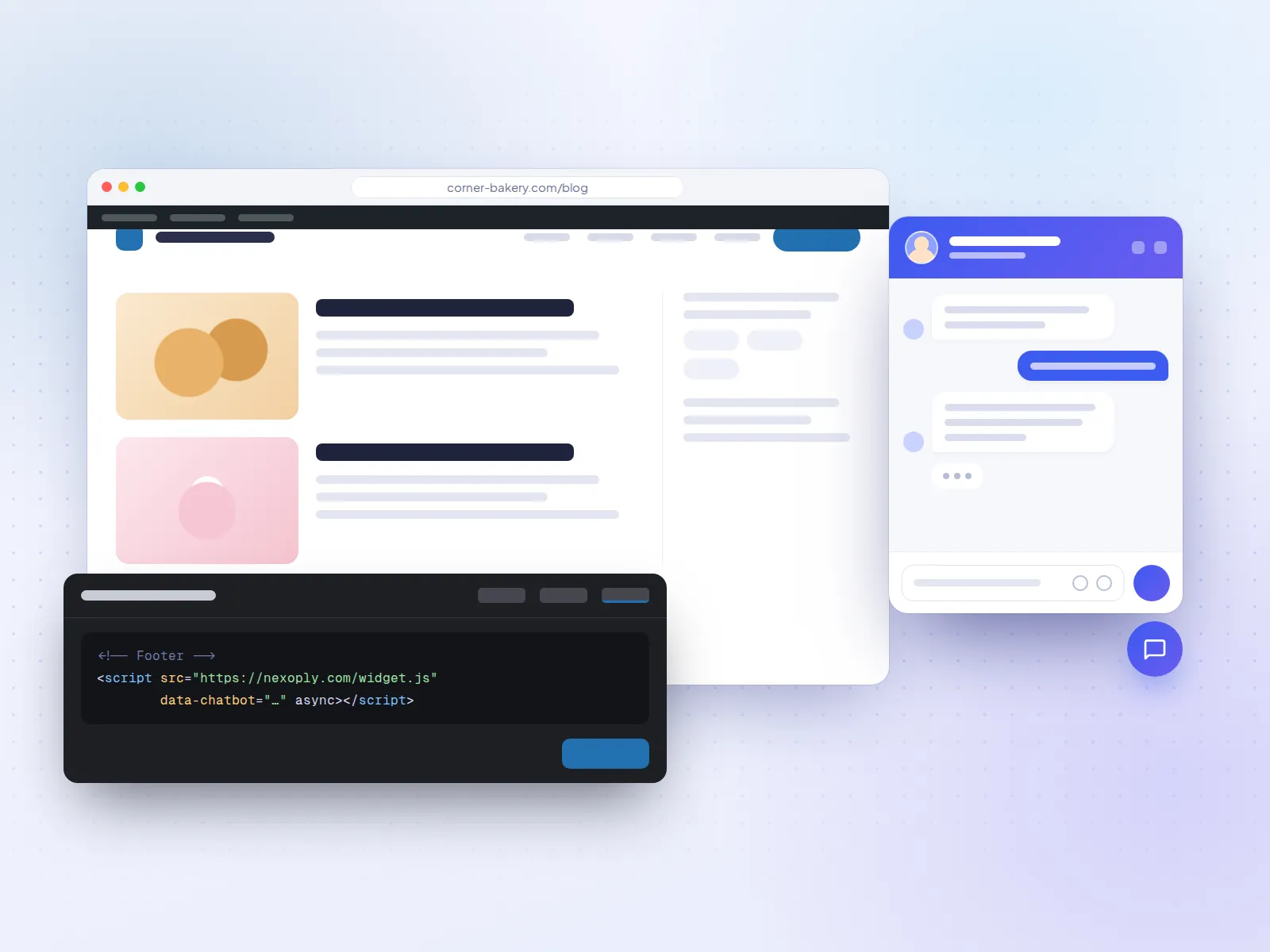
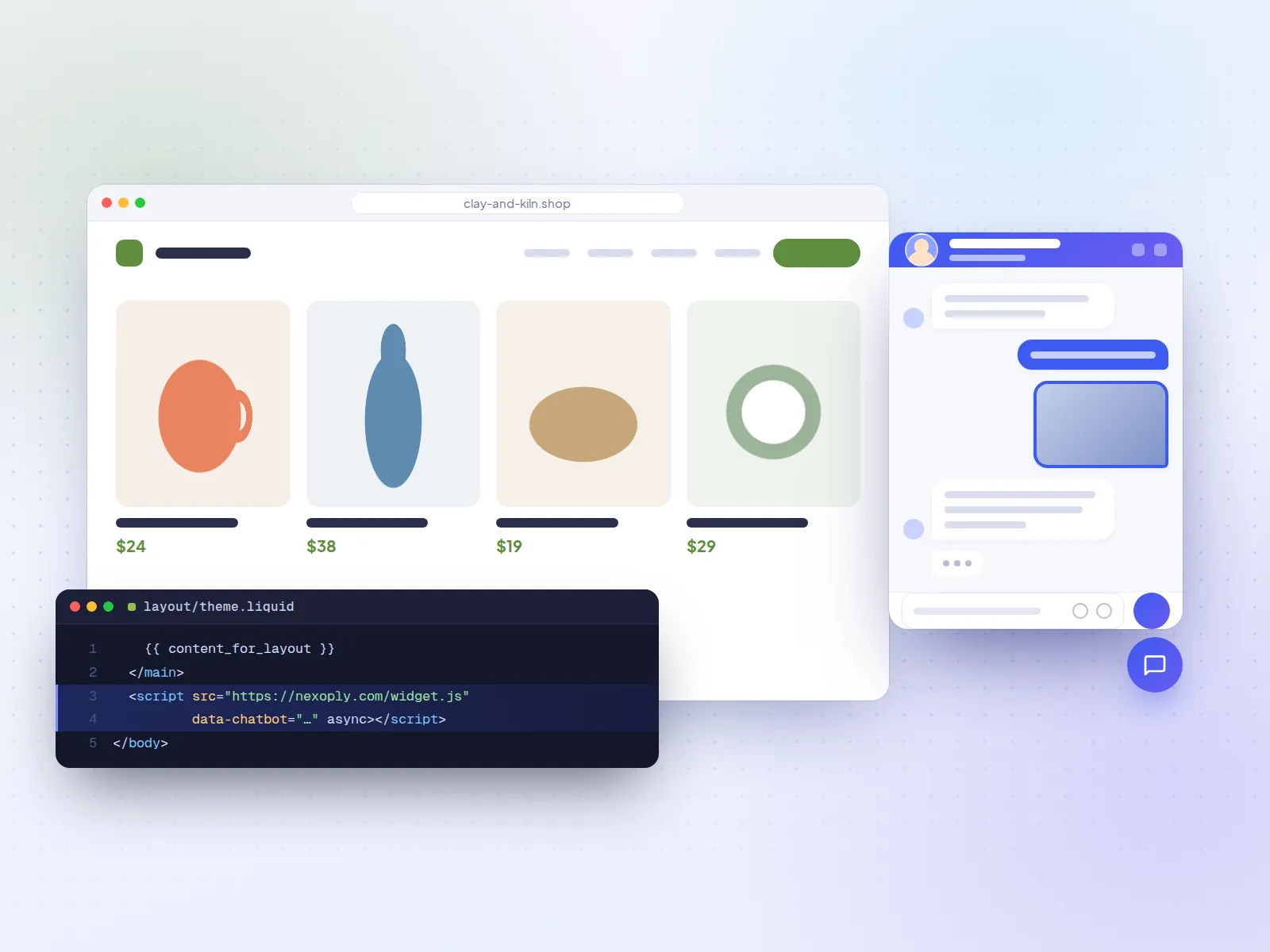
In your Nexoply dashboard, open the Chatbot page (click Create chatbot if you haven't yet) and copy the installation code. It looks like this:
<script src="https://nexoply.com/widget.js" data-chatbot="YOUR-KEY" async></script>The Chatbot page fills in your chatbot's own key where this example says YOUR-KEY. That key is public. It isn't a password, and nobody can get into your account with it. Want to see the assistant before touching Wix? Click Open a test page with your chatbot to try it on a sample page.
Step 2: Add it in Wix Custom Code
Open your site's dashboard
Log in to Wix and open the dashboard of the site you want (not the Editor).
Go to Custom Code
Click Settings in the left menu, then Custom Code (in the advanced settings section).
Add the code
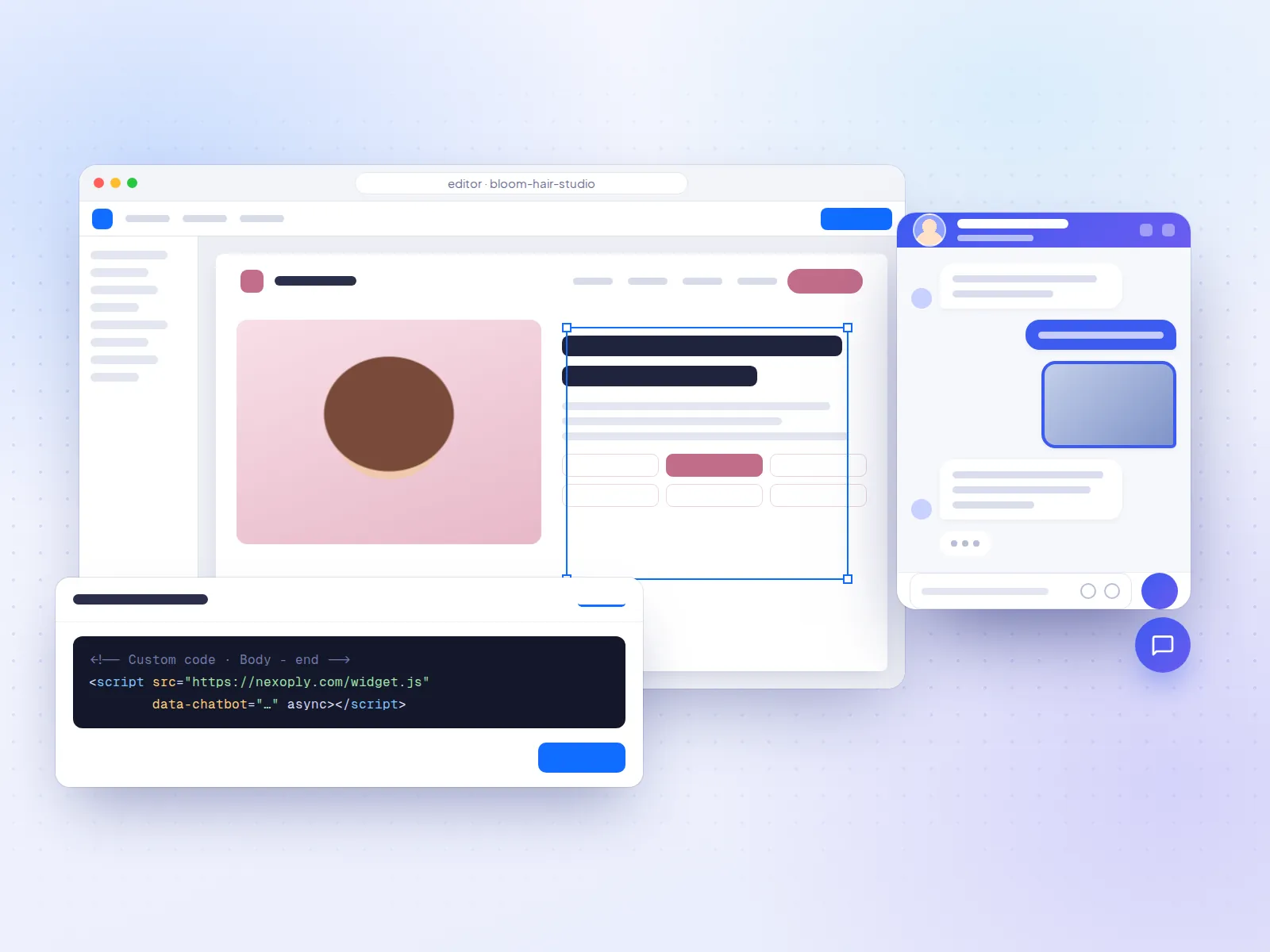
Click + Add Custom Code and paste your Nexoply code into the code box. Give it a name you'll recognise, such as "Nexoply chatbot".
Choose where it loads
Under "Add Code to Pages", choose All pages. Under "Place Code in", choose Body - end.
Apply
Click Apply. Custom code goes live on your published site straight away; you don't need to republish from the Editor.
Step 3: Check that it works
Open your live site on its connected domain in a new private window. The Editor preview doesn't run custom code, so check the real site. A chat button appears in the bottom corner. Ask a real question, such as "What's your cancellation policy?" or "How much is a balayage?" (more salon examples in the AI chatbot guide for salons). Within seconds the conversation shows up under Conversations in your Nexoply dashboard. From then on, changes you make in the dashboard reach your site within about a minute, without going back into Wix.
Troubleshooting: the chat button doesn't appear
- Plan or domain. If Custom Code is missing or greyed out, or the code doesn't run, check that the site has a premium plan and a connected domain. Custom code doesn't run on free wixsite.com addresses.
- Wrong placement. Open the snippet in Custom Code and check it's set to All pages and Body - end, not Head, and not only one page.
- Looking at the Editor. Custom code only runs on the published site, not in the Editor or its preview.
- Cookie banner category. If Wix asks for a code type for its cookie banner, a type other than Essential can keep the code from loading until the visitor accepts cookies. Nexoply's widget sets no cookies, so Essential is a fair choice.
- Allowed domains. If you set Only allow on these websites on the Chatbot page, make sure your connected domain is listed exactly (for example mysalon.com, or *.mysalon.com for subdomains).
- Chatbot switched off, or ad blockers. Check that the Chatbot enabled switch is on. Rarely, a browser extension blocks chat widgets; try another browser.
Customize the look, then next steps
You don't style the chat in Wix; that happens in your Nexoply dashboard. Under Chatbot → Customize you can choose the message button's icon (or your own image), text label, shape, size, colours and position, or use a side tab on the edge of the screen (such as "Help") instead. You can set a different look on phones, so the button doesn't cover your mobile layout, and use page rules to change it on chosen pages (for example /services/*). Match the chat window to your Wix fonts and colours, add your logo, or start from a ready-made template. A start screen can show your own buttons, such as Book, Call or WhatsApp.
After that, read through your conversations regularly. Any question the assistant couldn't answer is listed there, and one click turns it into an FAQ. Read how Nexoply works for the full picture. Also running a WordPress site? See how to add an AI chatbot to WordPress.
Frequently asked questions
Can I build a chatbot for Wix without coding?
Yes. You build it in the Nexoply dashboard by adding or importing your business information and choosing its look and start-screen buttons. The only code is the one line you paste into Wix's Custom Code settings.
Is there a free AI chatbot for Wix?
Nexoply's Free plan is $0 with 50 conversations a month and no credit card. Wix, though, only runs custom code on sites with a premium plan and a connected domain, so the Wix side isn't free. Wix's own Wix Smart Chat is also free to install: it answers with AI using the AI credits included in your Wix plan (shared with Wix's other AI tools), and the chat goes offline when they run out.
Do I need a paid Wix plan?
Yes. Wix only runs custom code on sites with a premium plan and a connected domain. Nexoply itself has a free plan; the requirement comes from Wix.
Does it slow down my Wix site?
Not in a way you'd notice. The script loads asynchronously, so your page appears first, and it waits until the page is ready. Its code is wrapped so an error can never break your site.
Will it work with my Wix template?
Yes. It works with any Wix template and with Wix Studio, because it's added site-wide through Custom Code. It uses a Shadow DOM, so your site's styles don't change the chat, and vice versa.
Is there a Nexoply app in the Wix App Market?
You don't need one. Nexoply is a single line of code added through Custom Code, and all settings live in your Nexoply dashboard.
Can it take bookings on my Wix site?
Nexoply doesn't take bookings or payments itself, but it can send visitors to your booking page, phone number or WhatsApp, for example with a Book button on its start screen.